

Instructions for accessing APM's online physio services on smartphone or tablet
You will need Microsoft Teams app on your phone or tablet to connect with your physiotherapist.
If you do not have this on your phone, the link sent in your confirmation and reminder email will enable you to use Microsoft Teams on your phone. You will not need to sign up or log in.
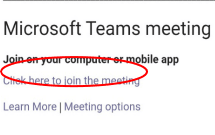
1. Open your booking confirmation or reminder email on your device and click on the 'Click here to join the meeting' link at the bottom.
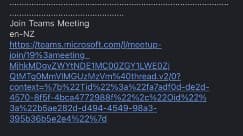
2. Once the Microsoft Teams page has opened, click the 'Join on the web instead' button.
3. Once Teams pop-up opens, click the 'Get Teams' button. This will open either the App Store or Google Play.
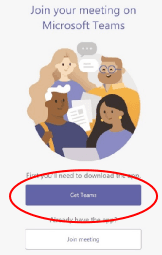
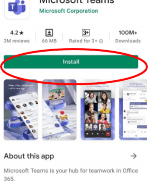
4. Click 'Install' to download Teams on your device.
5. Open Teams once it has installed, return to the email sent to you by your consultant and click the 'Click here to join the meeting' link again. You do not need to sign in.
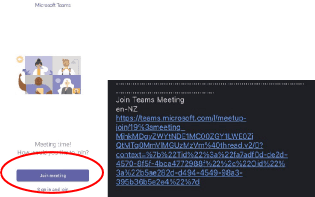
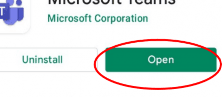
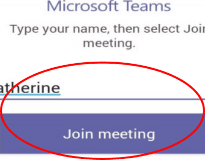
6. Once Teams has opened, type your name into the 'Enter name' box and then click 'Join meeting'.
7. Click 'Yes' on the 'Let teams.microsoft.com use your webcam and microphone?' prompt so that you can hear your consultant.
8. You will then see a message saying 'Joining, someone in the meeting should let you in soon' while waiting for your appointment to start.
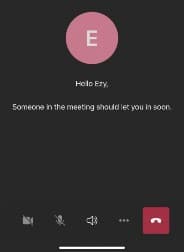
9. Once in the Teams meeting room, you can control the sound and video with the controls at the bottom of the screen.
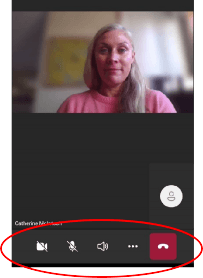
10. Your consultant can now work with you via video call, and provide the care you require.
11. Steps 1-4 only need to be completed once, after this you will be able to connect with your consultant by simply clicking the 'Click here to join the meeting' link in emails sent from your consultant.